
Authentication Settings for AD Pro Toolkit
How Authentication Works
Section titled “How Authentication Works”The AD Pro Toolkit works on domain-joined and non-domain joined computers.
The AD Pro Toolkit uses Windows Single Sign-on (Kerberos or NTLM fallback) for authentication. If your computer is domain joined, and you log in with a domain account the toolkit will use those credentials to automatically connect to your domain.
You can change what account the toolkit uses by following the steps below.
Video Tutorial
Section titled “Video Tutorial”Change Authentication Settings
Section titled “Change Authentication Settings”Click on “Settings” and then “Domain Setting”
To modify the existing connection click the pencil icon.
If you want the app to connect using a different account enter the account details.
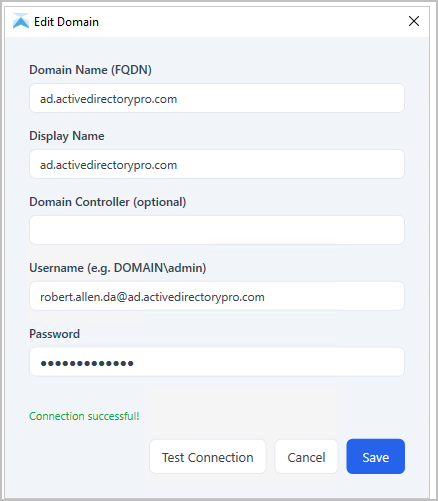
To add additional domains click “Add Domain” and enter the details.