
Change User Logon Names in Active Directory
In this guide, you will learn how to bulk change user logon names (sAMAccountName) and UPN name using the AD Pro Toolkit. The toolkit makes it easy to change user logon names for multiple users at once.
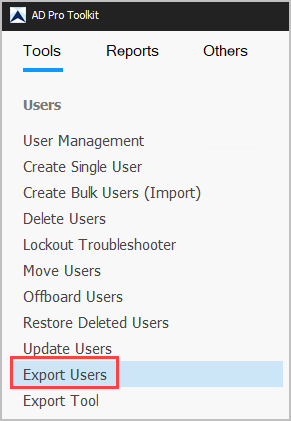
Step 1. The first step is to export the accounts you want to update to a CSV file. Click on User Tools > Export Users
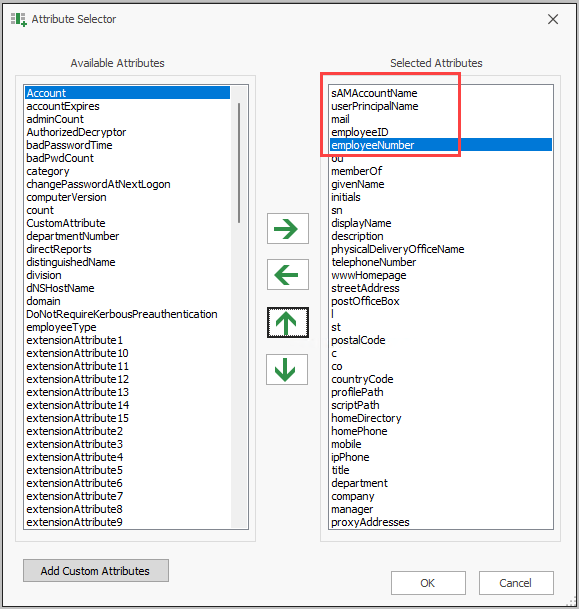
Step 2. Click on columns and include the following:
- sAMAccountName
- userPrincipalName
- employeeNumber
- employeeID
Step 3. Click run and then Export > Export to CSV. This will generate and download the csv file.
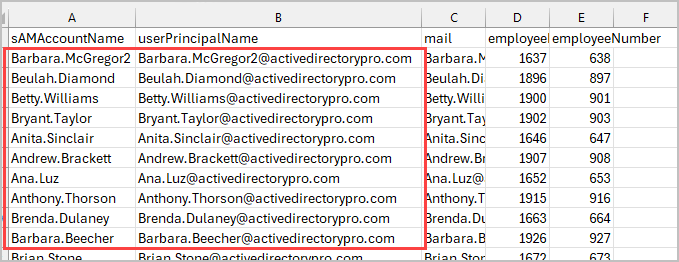
Step 4. Open the CSV template and make the changes to the sAMAccountName or UPN for each user that you want to update. If you are not updating both attributes then you can remove one of them from the template.
For example, I’m changing a users sAMAccountName from Barbara.McGregor to Barbara.McGregor2 and the UPN from Barbara.McGregor2@activedirectorypro.com to Barbara.McGregor2@activedirectorypro.com.
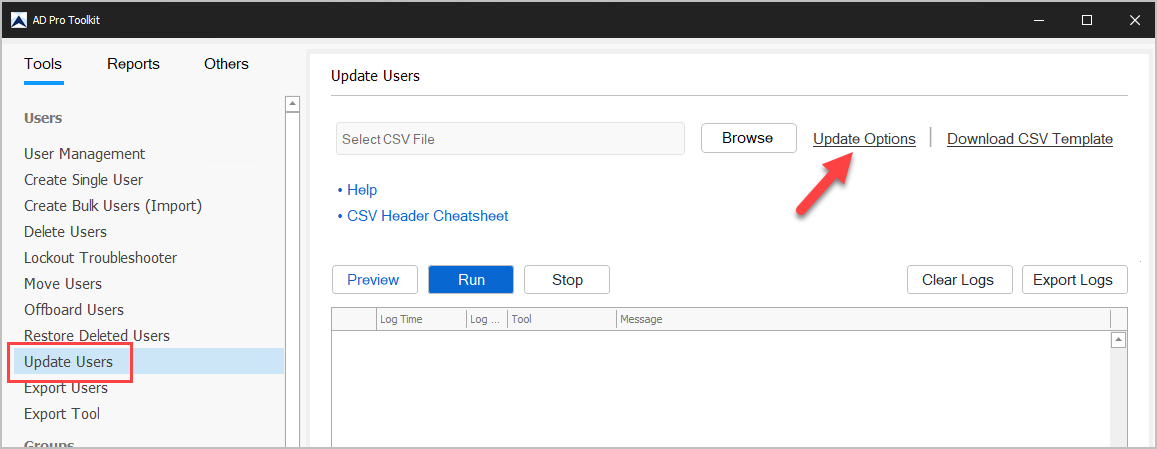
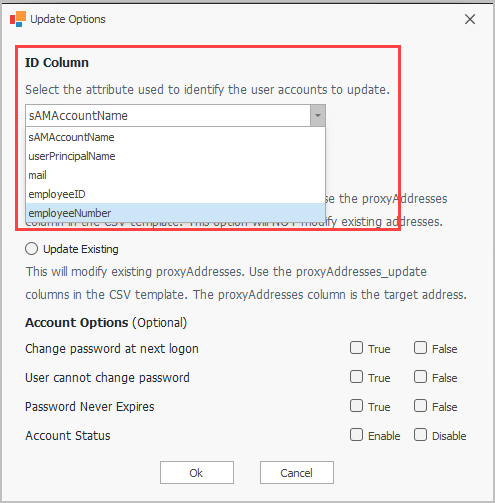
Step 5. Open the Update users Tool and Click on Update Options.
Step 6. Change the ID column to mail, employeeID or employeeNumber. This will be used as the identifier so the toolkit knows which accounts to update. Since we are updated the sAMAccountName and UPN we cannot use them as the itentifier.
Step 7. Click the “Select Template” button and select your template
Step 8. Click Run to start the update. The tool will now use your csv template to update the sAMAccountName and UPN username.
Step 9. Review logs for any errors.