
Import OUs into Active Directory
Description
Section titled “Description”The Import OUs feature lets you bulk import OUs from a CSV file. You can also export OUs from one domain and import them into another domain.
How To
Section titled “How To”Step 1. Download or create a CSV file. The csv file needs to columns
- name = The name of the OU
- distinguishedName = this is the path of the OU you want to import
CSV Example

Step 2. Select your CSV and click “Run”.
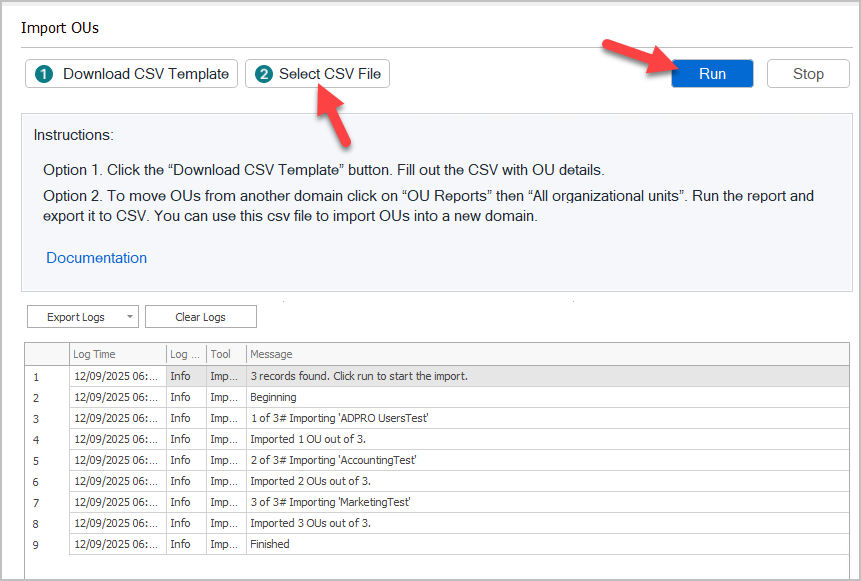
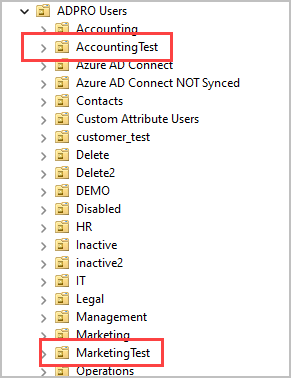
Now when I refresh ADUC I’ll see the imported OUs
Export and Import OUs
Section titled “Export and Import OUs”If you want to export a list of OUs from one Domain and import to another follow these steps.
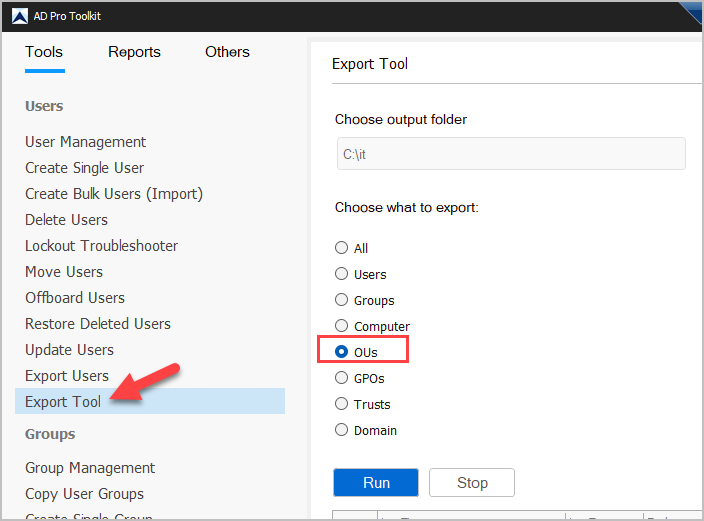
Step 1. Click on “Export Tool” and select OUs to export all the OUs.
Step 2. Modify the exported CSV. You will most likely need to modify the distinguishedName column to the new domain.
Step 3. Import the OUs on the target (new) domain.