Create Single Active Directory Users
Description
Section titled “Description”This tool allows you to create individual Active Directory user accounts with ease. It features a template system designed to streamline the account creation process. You can create multiple templates based on user types, such as department, permissions, contractor, student, teacher, and more.
Features
Section titled “Features”- Create users from templates
- Automatically add users to groups
- Set naming conventions
- Add users to OUs
- Automatically define address details, department, description, manager and more.
How to Create Users
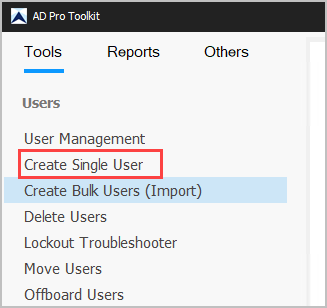
Section titled “How to Create Users”Step 1. Click on “Create Single User” from the sidebar menu
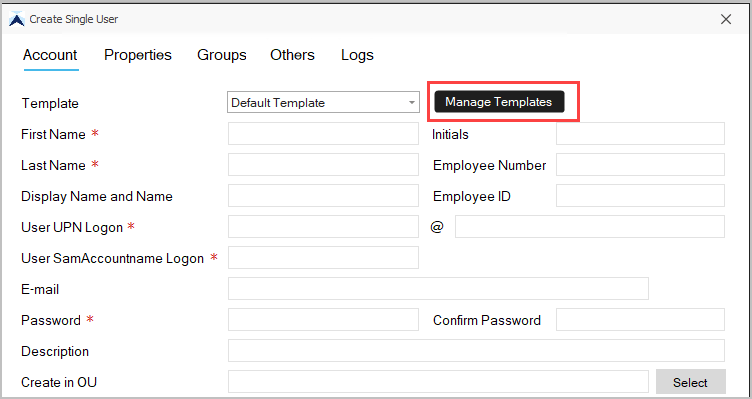
Step 2. To create or modify a template click on “Manage Templates”. If you don’t want to use a template just continue to fill out the form.
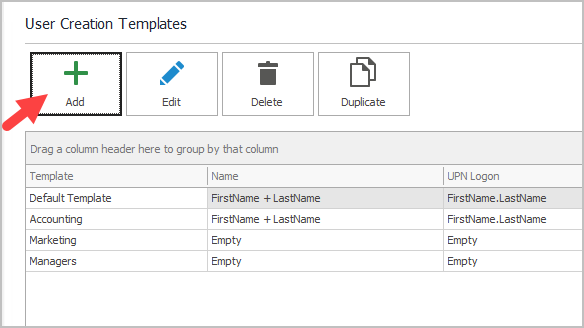
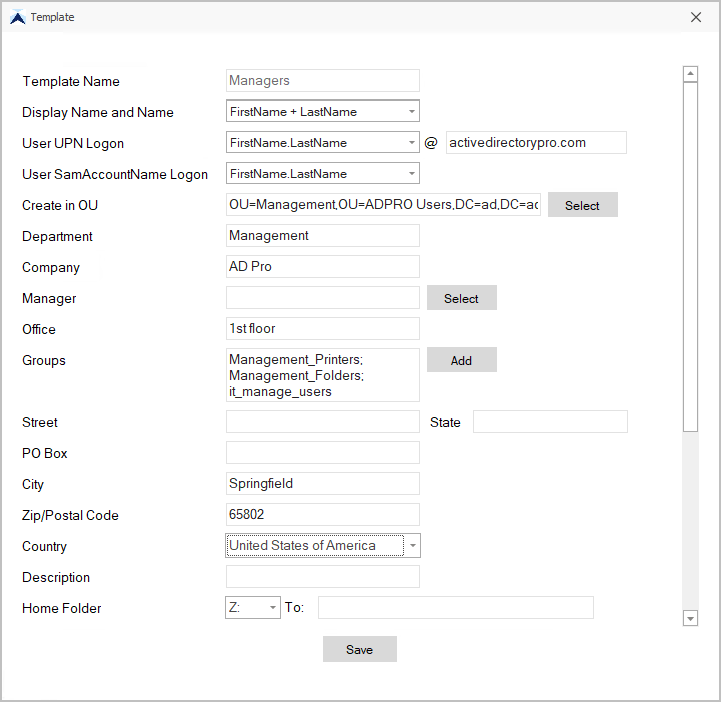
Step 3. Edit “Default Template” or click “Add” to create new templates.
Step 4. Fill out template details and click save.
Note: All fields are optional so only fill out what you need.
Step 5. Select you template and complete the form.
Note: There is 4 tabs at the top.
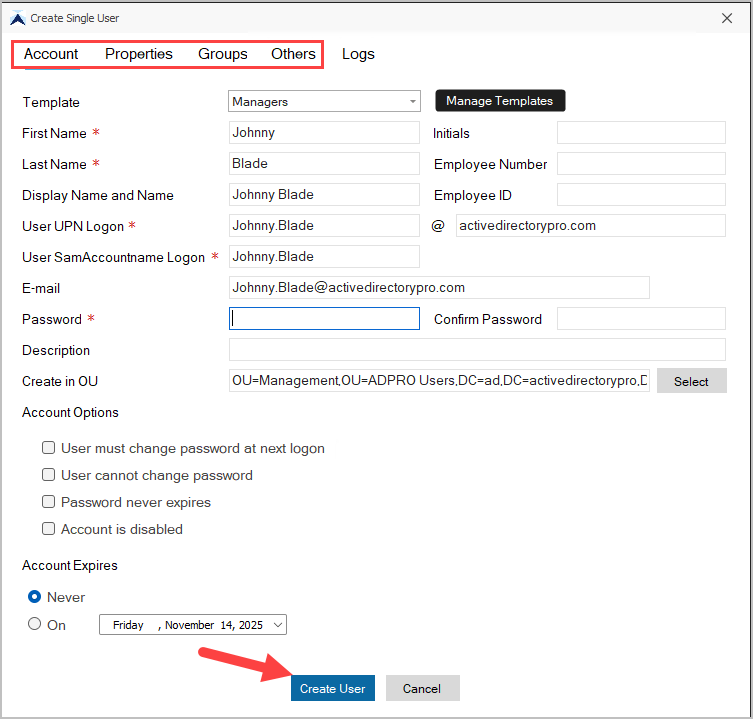
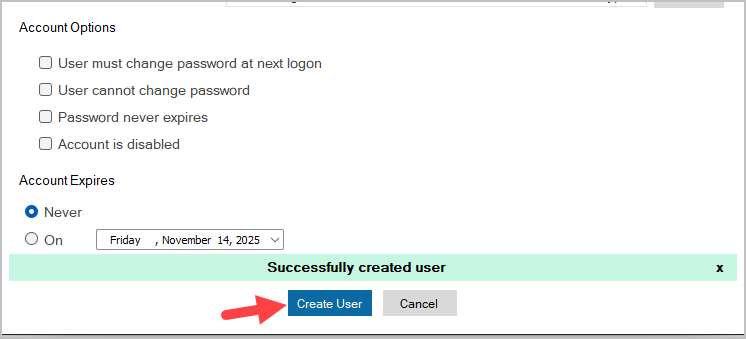
Click “Create user” to create the account. You should get a message that says “Successfully create user”.
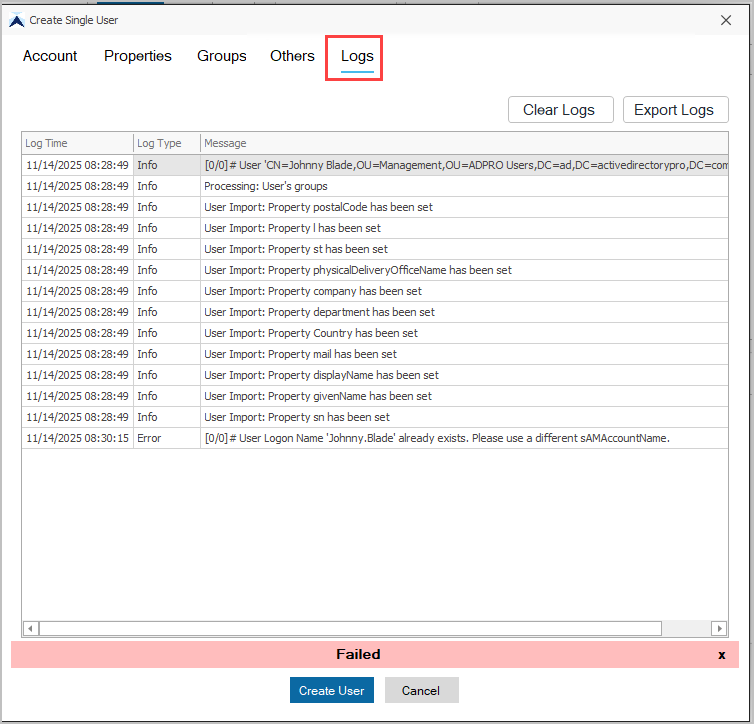
If the account failed to create click the “Logs” tab to review the logs.
Share User Templates
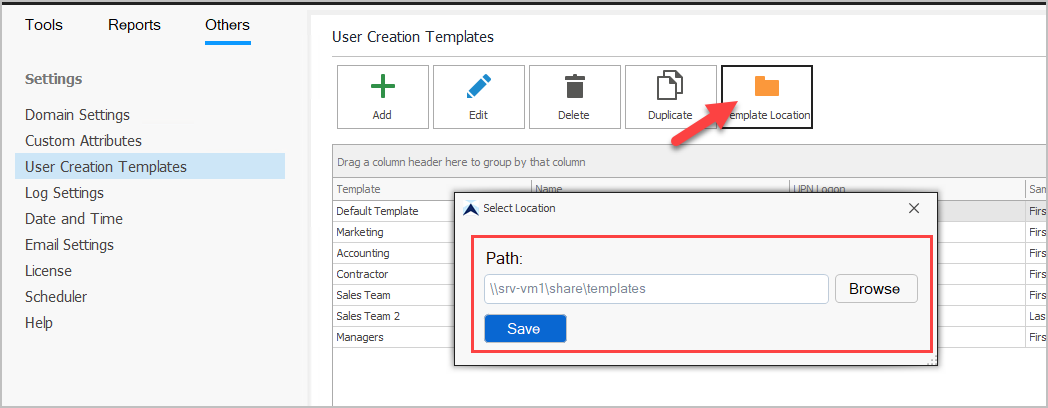
Section titled “Share User Templates”You can store the templates at a network location so multiple users can use the same templates.
- Click on Others and then “User Creation Templates”.
- Click the “Template Location” button.
- Browse or enter a location to save the templates.