Delete Active Directory Users
Description
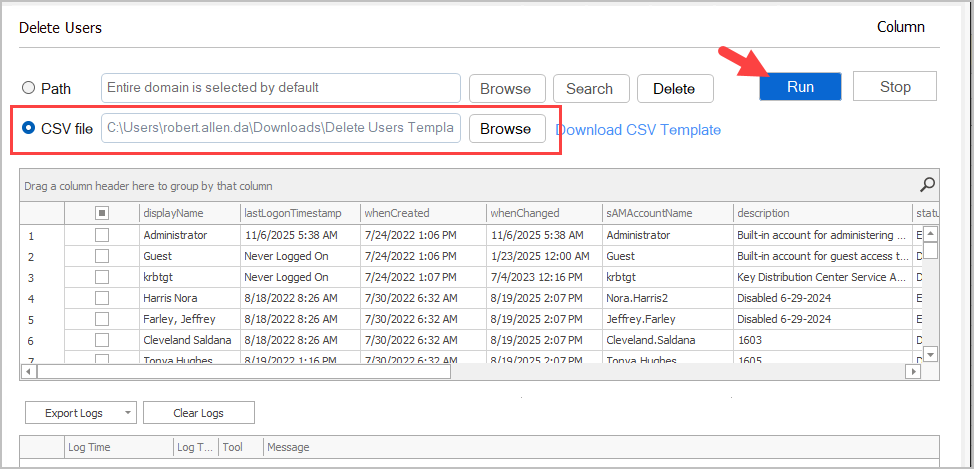
Section titled “Description”The delete users tool lets you bulk delete accounts by searching and filtering for specific accounts. You can also bulk delete accounts from a csv file. This is usefull when you have accounts spread out over multiple OUs that you want to remove.
Features
Section titled “Features”- Bulk delete AD User accounts
- Delete users from a CSV
- Delete users with a specific attribute
- Delete all users from an OU
- Delete all or specific disable accounts
How to
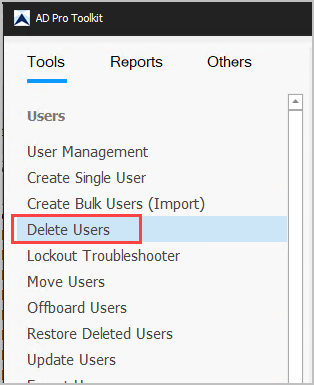
Section titled “How to”Step 1. Click on Delete Users
Step 2. To get the accounts you want to delete you have a few options.
- Click browse and select an OU
- Click Search to search for specific accounts
- Click “Run” to display all accounts then filter the results (for example, filter by department and or status)
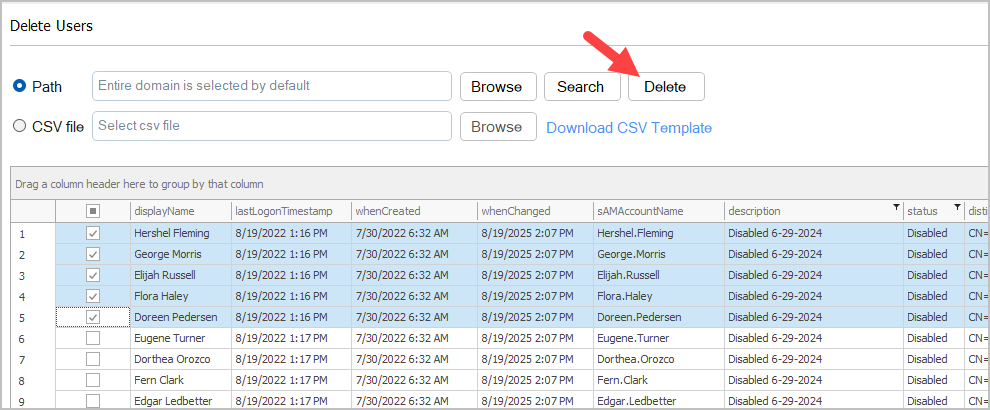
In this example, I want all disabled accounts that have a specific description.
So I’ll click “Run” to get all accounts then filter on the descrption column if it contains the word “Disabled”. I’ll then filter the status column for only disabled accounts.
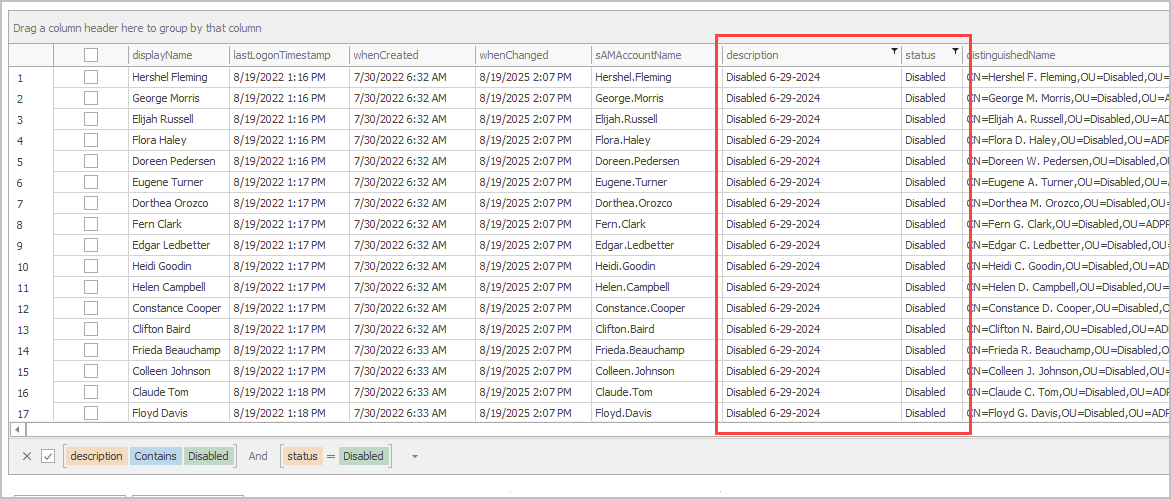
Step 3. Select the accounts and click “Delete”. You will get a pop up to confirm the deletion.
Delete User Accounts from CSV File
Section titled “Delete User Accounts from CSV File”To delete a list of user accounts you need the users logon name (sAMAccountName).
Example csv
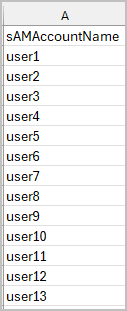
Then just select your csv file and click “Run”.