
Update Active Directory Users in Bulk
Description
Section titled “Description”The Bulk User Update Tool enables administrators to efficiently modify account attributes for large groups of users in a single operation. Instead of editing accounts one by one, this tool streamlines the process by allowing bulk selection, configuration, and execution of updates across any number of AD user accounts.
Features
Section titled “Features”-
Includes CSV Template
- CSV template includes 35 user attributes, and you can easily add more.
-
Update General User Attributes
- Bulk modify office, telephone, email, first and last name, change logon names.
-
ProxyAddresses
- Update users proxyAddresses, add, remove or change existing address.
-
extensionAttributes
- Update the extensionAttributes 1-15 for multiple users at once.
-
Address Attributes
- Update street, PO box, city, state, zip, country.
-
Account Options
- Bulk update user account options such as password never expires, change password.
How to Bulk Update Users
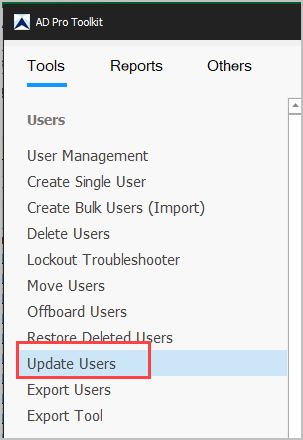
Section titled “How to Bulk Update Users”Step 1. Click on “Update Users”
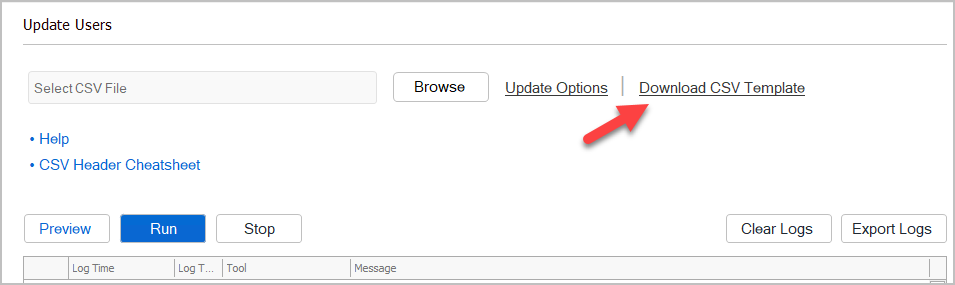
Step 2. Click on “Download CSV Template”.
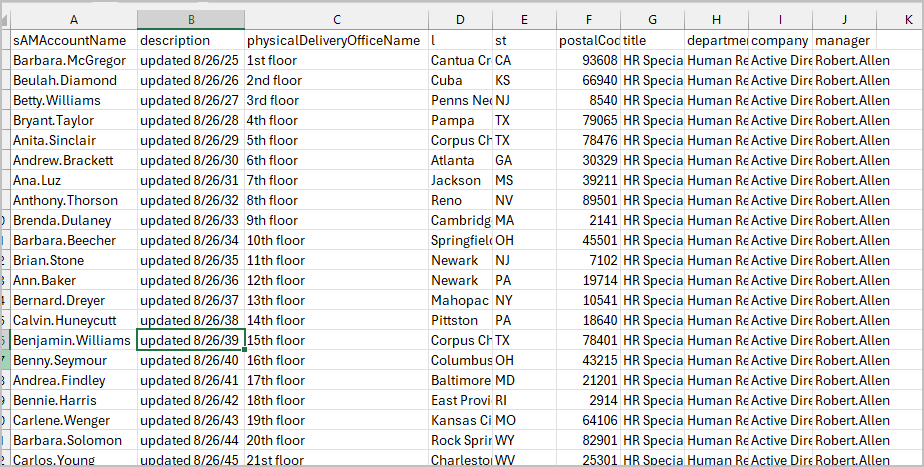
Step 3. Modify the CSV template and add the accounts and details that you want to update. You can remove any columns from the spreadsheet that you don’t need.
You can use one of the columns below to identify the accounts.
- sAMAccountName (default)
- EmployeeID
- EmployeeNumber
- UserPrincipalName
CSV Example: In this example, I’m going to update the description, office, city, state, title, department, manager and company. I’m using the sAMAccountName attribute to identify the accounts, I’ve also removed the columns I don’t need.
Save your template and move to step 4.
Step 4. Select your CSV file and click “Run”.
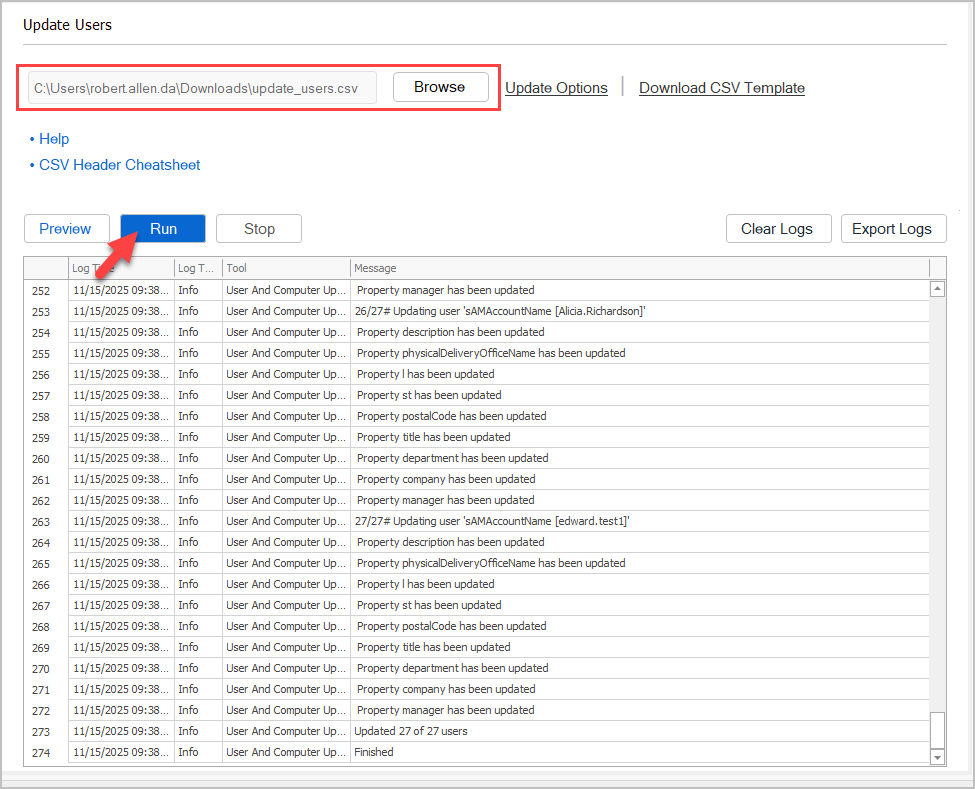
Review the logs for any update errors.
Remove User Attributes
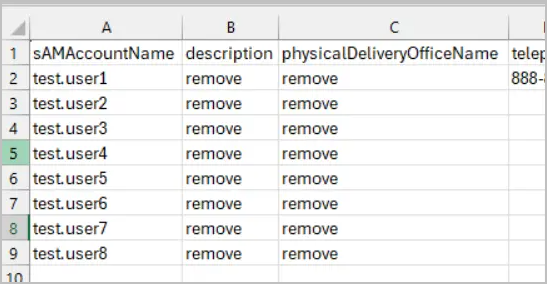
Section titled “Remove User Attributes”To remove user attributes put remove in the column. See the picture below for an example. In this example, I’ll remove the description and office attributes for multiple users.
Update Users by Exporting a list of users
Section titled “Update Users by Exporting a list of users”The AD Pro Toolkit includes a user export tool, this will save you time from manually creating a CSV template.
In this example, I’m going to generate a list of all users in the Accounting OU.
- Click on “Export Users”.
- Click “Browse” to select an OU or group. In this example, I’m going to select my Accounting OU.
- Click “Columns” and add/remove the columns you want to update.
- Click “Run” to preview and then click export and select “Export to CSV”.
- Now you should have a CSV template with the list of users and attributes you want to update. Next, just update the CSV with the new details and run the tool to process the csv.
Attribute Table
Section titled “Attribute Table”| Attribute Name | Example Value | Description |
|---|---|---|
| sAMAccountName | robert.allen | This will be the user’s logon name. |
| password | Fuutbaal#123 | The password for the user. |
| memberof | group1,group2 | Adds the user to groups. Use group names; separate multiple groups with commas. |
| givenName | Robert | The user’s first name (General tab). |
| initials | RA | The user’s initials (General tab). |
| sn | Allen | The user’s last name (General tab). |
| displayName | Robert Allen | The user’s display name (General tab). |
| description | IT staff | The Active Directory description field (General tab). |
| physicalDeliveryOfficeName | 1st floor | The office field (General tab). |
| telephoneNumber | 1-888-214-3802 | Telephone number field (General tab). |
| robert@activedirectorypro.com | The email field (General tab). | |
| wWWHomePage | activedirectorypro.com | Web page field (General tab). |
| streetAddress | 123 W. EagleCrest LN | Street field (Address tab). |
| postOfficeBox | PO Box 1 | P.O. Box field (Address tab). |
| l | Springfield | City field (Address tab). |
| st | MO | State/Province field (Address tab). |
| postalCode | 65802 | ZIP/Postal Code field (Address tab). |
| c | US | 2-digit country code. |
| co | United States | Country name (string value). |
| countryCode | 840 | Country code (integer value). |
| profilePath | \file1\profiles\%username% | Profile path field (Profile tab). |
| scriptPath | it.bat | Logon script field (Profile tab). |
| homeDirectory | \file2\users\IT\%username% | Home folder path (Profile tab). |
| homePhone | 1-888-214-3802 | Home phone (Telephones tab). |
| mobile | 1-888-214-3802 | Mobile number (Telephones tab). |
| ipPhone | 1-888-214-3802 | IP phone (Telephones tab). |
| title | Network Manager | Job title field (Organization tab). |
| department | IT | Department field (Organization tab). |
| company | Active Directory Pro | Company field (Organization tab). |
| employeeID | 12345 | The employeeID attribute. |
| employeeNumber | 1 | The employeeNumber attribute. |
| manager | robert.allen | Assigns a manager to the user. Use the manager’s logon name. |
| proxyAddresses | SMTP:test.user1@activedirectorypro.com, smtp:test.user2@activedirectorypro.com | Adds additional proxyAddresses to the user. |
| proxyAddresses_update | smtp:test.user3@activedirectorypro.com | Updates existing proxyAddresses. |