Schedule Tasks and Reports
The AD Pro Toolkit includes a built in scheduler to automate tasks and reports.
Note: If you want to get email repots on scheduled tasks you will need to configure the email server settings
List of scheduled tasks
Section titled “List of scheduled tasks”- Reports
- Choose from over 200 reports to automate.
- Bulk Update
- Automate bulk updating user accounts.
- AD Health Monitor
- Get an emailed report on the health status of your domain controllers.
- Local Admins Report
- Get scheduled report on who is a local administrator.
- Import Users
- Schedule importing new users into Active Directory
- Inactive Accounts
- Automate finding inactive accounts
- Disable, move, set descriptions and report on inactive accounts.
- Delete Accounts
- Automate deleting inactive accounts
- Disabled Accounts
- Run actions on disabled accounts
- Local Certificates Report
Create a Scheduled Task
Section titled “Create a Scheduled Task”Step 1. Click on “Others” and “Schedule”
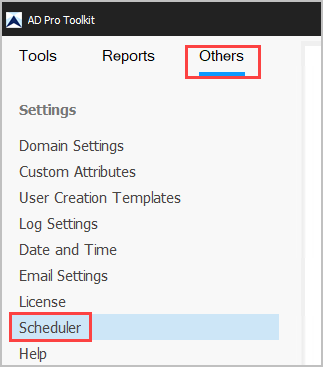
Step 2. Click “Add” a new task.
Task Settings
Section titled “Task Settings”- Type: Choose the task type
- Task: Name: Give the task a name
- Credentails: Click “Set” to enter the username and password to run the task.
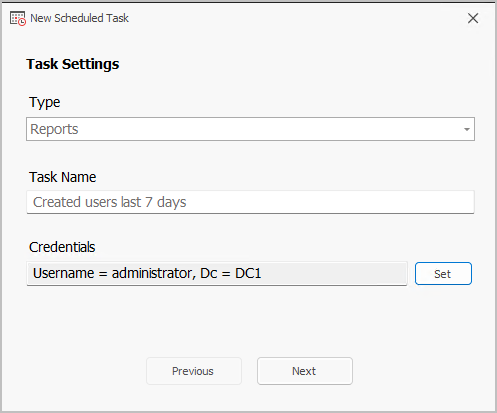
Click “Next”
Schedule Frequency
Section titled “Schedule Frequency”Select how often you want the task to run.
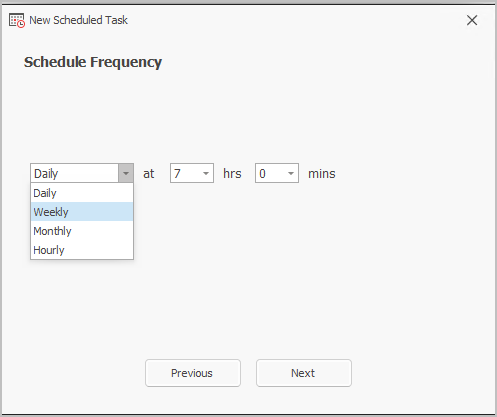
Click “Next”
Task Actions
Section titled “Task Actions”Set the task action and output options. This screen will be different depending on the task type you select.
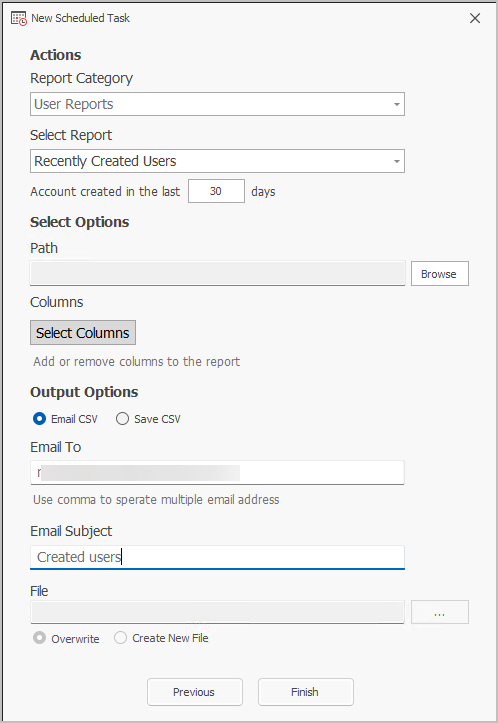
Click “Finish”.
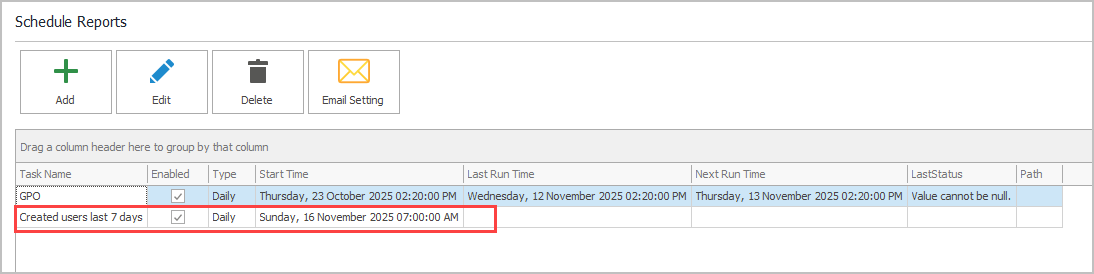
Your task will now show in the list of all scheduled tasks.